A minimalist Vim setup that just works
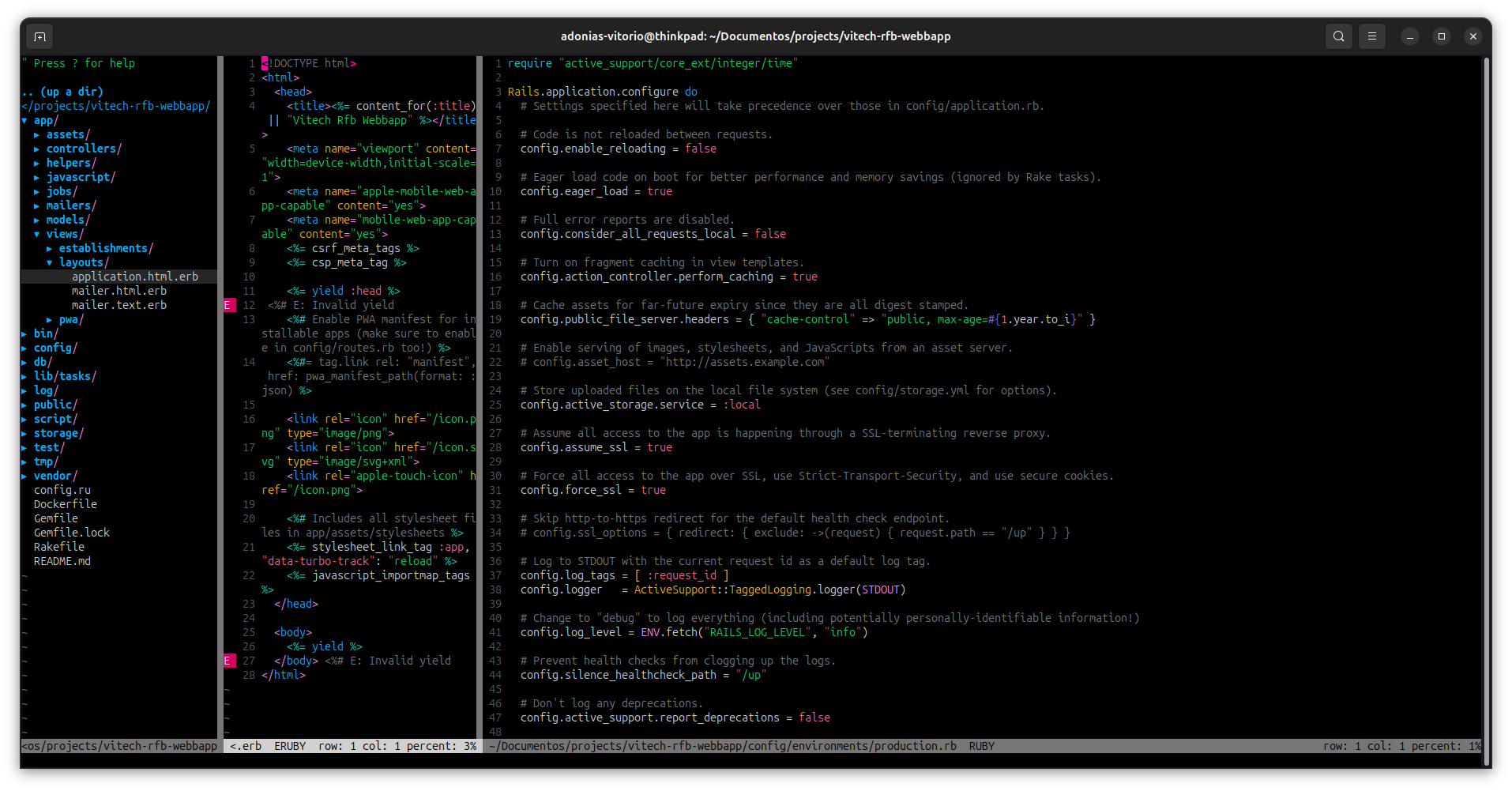
I’ve been using the same Vim setup since 2019, and it still works well for everything I need: coding, writing, editing, and exploring projects across all the languages I’ve worked with.
Don’t get me wrong, I respect devs who maintain super advanced Vim configurations with hundreds of plugins and custom scripts. But that’s definitely not for me. Keep it simple.
This post is for anyone who wants a clean and easy Vim experience without too much complexity. If you are starting with Vim or want a minimalist setup, this guide is for you.
Getting Started
Vim reads settings from a file called .vimrc. You can find it in your home directory. If it doesn’t exist, create it:
vim ~/.vimrc
Now let’s add some magic.
Basic Settings
set nocompatible            " Disable Vi compatibility for better Vim features
colorscheme wildcharm       " Set a simple, readable color scheme
filetype on                 " Enable file type detection
filetype plugin on          " Enable file type specific plugins
filetype plugin indent on   " Enable file type specific indentation
syntax on                   " Enable syntax highlighting
set number                  " Show line numbers
set tabstop=2               " Set tab width to 2 spaces
Search
set incsearch      " Highlight search matches as you type
set ignorecase     " Ignore case when searching
set smartcase      " Override 'ignorecase' if search contains uppercase letters
This makes searching smoother. Vim will highlight matches as you type, ignore case unless you use capital letters, and help you find what you need faster.
Helpful Visuals
set showcmd      " Display incomplete commands in the status line
set showmode     " Show current mode (e.g., -- INSERT --) in the status line
set showmatch    " Briefly jump to matching bracket when typing
set hlsearch     " Highlight all search matches in the file
These settings show your current mode, match parentheses and brackets, and highlight search results. It’s all about making Vim more friendly.
Auto Completion
set wildmenu        " Enable enhanced command-line completion menu
set wildmode=list:longest " Show completion options as a list, auto-complete the longest match
set wildignore=*.docx,*.jpg,*.png,*.gif,*.pdf,*.pyc,*.exe,*.flv,*.img,*.xlsx " Ignore these file types in command-line completion
Wildmenu gives you a nice auto-complete menu when you press TAB. It works like Bash and ignores files you probably don’t want to open in Vim.
Status Line
set statusline=                       " Start with an empty status line
set statusline+=\ %F\ %M\ %Y\ %R      " Show file name, modified flag, file type, and readonly flag
set statusline+=%=                    " Separate left and right sections
set statusline+=\ row:\ %l\ col:\ %c\ percent:\ %p%% " Show current row, column, and percent through file
set laststatus=2                      " Always display the status line
This shows the file name, mode, and your position in the file. It’s simple and useful.
Plugins
To use plugins, you’ll need a plugin manager. I use vim-plug. You can install it by following the instructions on vim-plug’s GitHub page.
Note: There are other plugin managers, but you only need to know they exist.
Then add this to your .vimrc:
call plug#begin()
Plug 'dense-analysis/ale'   "ALE: Asynchronous linting and fixing for many languages"
Plug 'preservim/nerdtree'   "NERDTree: File system explorer for Vim"
call plug#end()
These plugins are lightweight and powerful:
ale: shows errors and warnings while you typenerdtree: lets you explore files in a sidebar
Final
After saving your .vimrc, restart Vim or reload it with:
:source ~/.vimrc
And that’s it. You now have a Vim setup that’s clean, fast, and easy to use. It’s the same one I’ve trusted for years, and I hope it serves you just as well.